Stellify Platform
Interface Builder
Interface Builder Guide
The Stellify Interface Builder allows you to author HTML visually without drag-and-drop. You construct your interface by adding, configuring, and nesting HTML elements.
Video Tutorial
Watch the complete walkthrough: Interface Builder Tutorial
Core Concept
Important: The Interface Builder is not a drag-and-drop builder. Instead, you:
- Add HTML elements to a page
- Configure their properties and attributes
- Nest elements to create structure
- See a live preview of your HTML
Think of it as "authoring HTML visually" rather than "dragging widgets around."
Getting Started
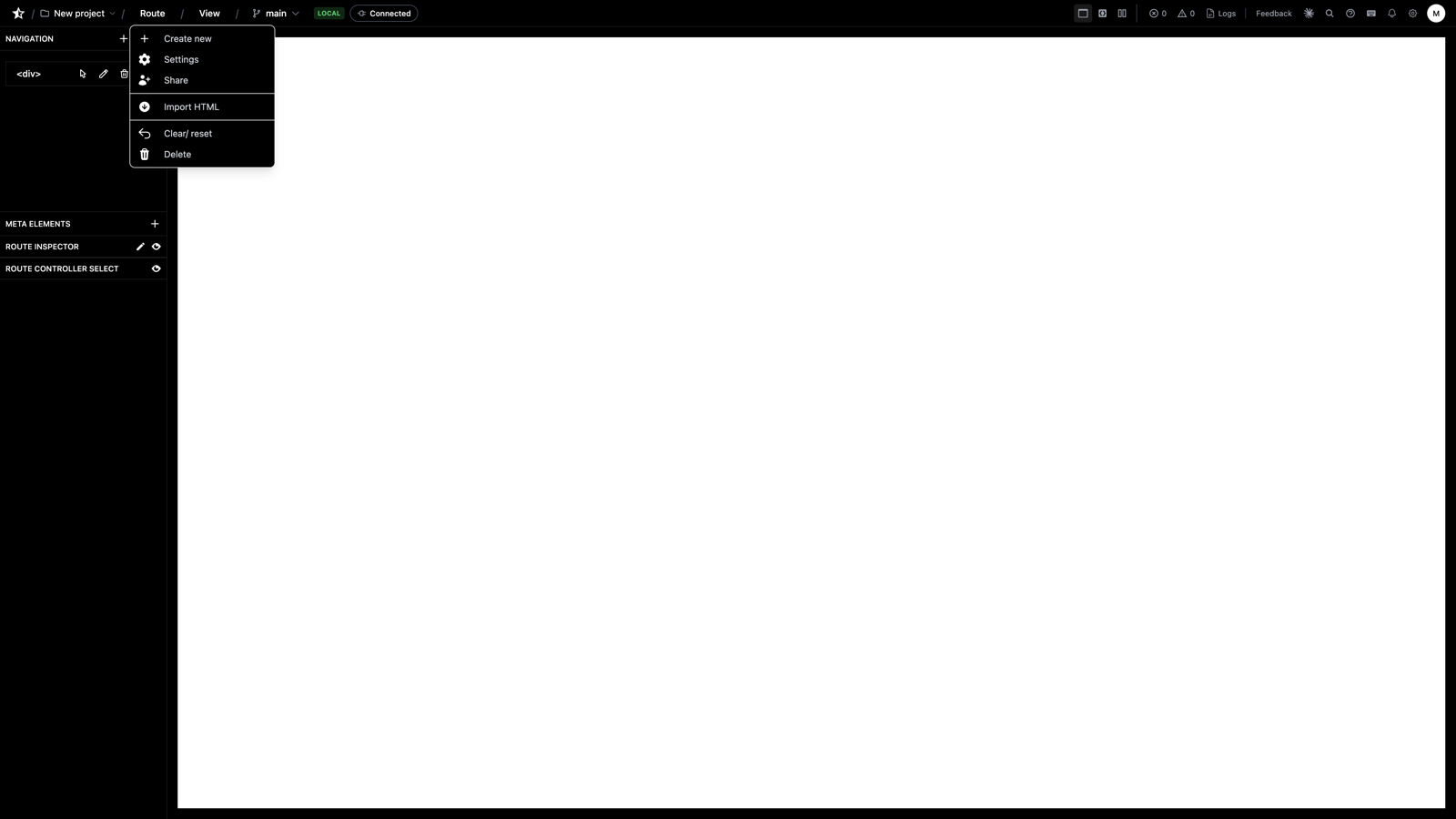
Creating a New Page
- Navigate to Routes in your project
- Click New Route
- Enter the route path (e.g.,
/dashboard,/users/create) - Choose the HTTP method (GET, POST, etc.)
- Click Create
Your new page opens in the Interface Builder.
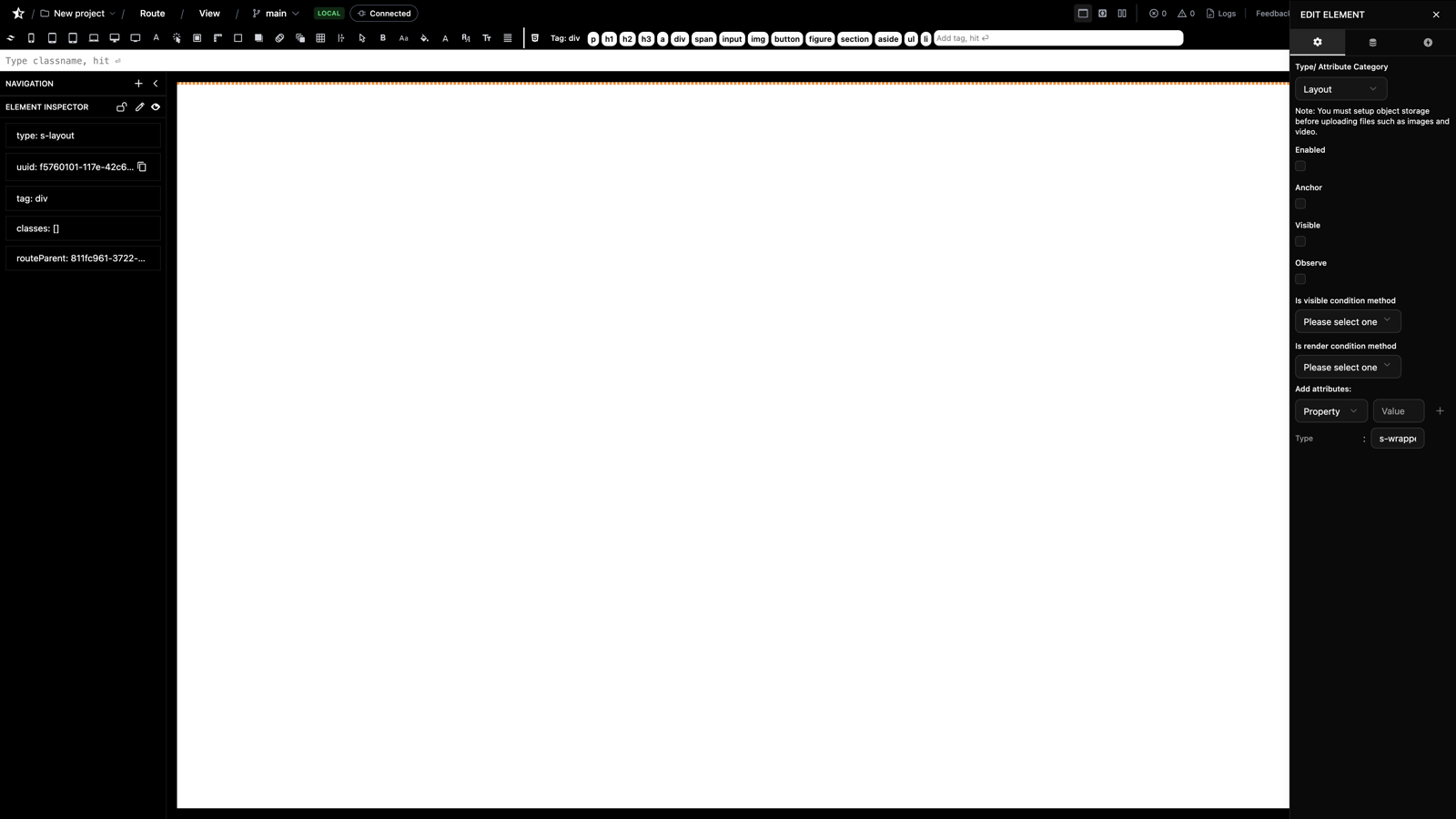
The Interface Builder Layout
┌─────────────────────────────────────────────────────┐
│ Toolbar (Add Element, Save, Preview, Export) │
├──────────────┬────────────────────┬─────────────────┤
│ │ │ │
│ Element │ Canvas │ Properties │
│ Tree │ (Live Preview) │ Panel │
│ │ │ │
│ - Body │ Your page │ Tag: div │
│ - Header │ renders here │ Classes: [] │
│ - Main │ │ ID: header │
│ - Footer │ │ Attributes │
│ │ │ │
└──────────────┴────────────────────┴─────────────────┘
Working with Elements
Adding Elements
-
Select a parent element in the tree (or the page body)
-
Click Add Element button
-
Choose element type:
s-wrapper- Container (div)s-text- Text contents-image- Image tags-link- Hyperlink (anchor)s-form- Form elements-input- Input fields-button- Button
-
The element appears nested under your selection
Configuring Elements
When you select an element, the Properties Panel shows:
Basic Properties
- Tag - HTML tag name (div, span, section, article, etc.)
- Name - Internal identifier (optional)
- Type - Element type classification
Styling
-
Classes - CSS classes (array)
- Click + Add Class to add Tailwind/custom classes
- Example:
container,mx-auto,p-4
-
Inline Styles - Direct CSS styles (use sparingly)
- Key-value pairs
- Example:
color: red,font-size: 16px
Attributes
- ID - Element ID attribute
- Data Attributes - data-* attributes
- ARIA Labels - Accessibility attributes
- Custom Attributes - Any HTML attribute
Content (for text elements)
- Text - The actual content to display
- HTML - Raw HTML content (advanced)
Nesting Elements
Create structure by nesting elements:
Body
└── s-wrapper (tag: header)
└── s-wrapper (tag: nav)
├── s-link (href: "/")
│ └── s-text "Home"
├── s-link (href: "/about")
│ └── s-text "About"
└── s-link (href: "/contact")
└── s-text "Contact"
This creates:
<header>
<nav>
<a href="/">Home</a>
<a href="/about">About</a>
<a href="/contact">Contact</a>
</nav>
</header>
Moving Elements
To move an element:
- Select the element in the tree
- Click Move button
- Select new parent
- Choose position (before, after, inside)
Or use the Move Element API endpoint.
Deleting Elements
- Select the element
- Click Delete button
- Confirm deletion
Note: Deleting a parent deletes all its children.
Element Types Explained
s-wrapper
Generic container element. Default tag is div, but can be changed to any HTML tag.
Common uses:
- Layout containers
- Semantic HTML (header, footer, section, article)
- Grouping elements
Example:
{
"type": "s-wrapper",
"tag": "section",
"classes": ["container", "mx-auto", "py-8"]
}
s-text
Text content element. Used for headings, paragraphs, spans, etc.
Properties:
text- The content to displaytag- h1, h2, p, span, etc.
Example:
{
"type": "s-text",
"tag": "h1",
"text": "Welcome to Stellify",
"classes": ["text-4xl", "font-bold"]
}
s-image
Image element.
Required attributes:
src- Image URLalt- Alt text (accessibility)
Example:
{
"type": "s-image",
"tag": "img",
"attributes": {
"src": "/images/logo.png",
"alt": "Stellify Logo"
},
"classes": ["w-32", "h-32"]
}
s-link
Hyperlink element.
Required attributes:
href- Link destination
Example:
{
"type": "s-link",
"tag": "a",
"attributes": {
"href": "/dashboard"
},
"classes": ["text-blue-600", "hover:underline"]
}
s-form
Form element with inputs.
Attributes:
action- Form submission URLmethod- GET or POST
Example structure:
s-form (action: "/users", method: "POST")
├── s-input (name: "name", type: "text")
├── s-input (name: "email", type: "email")
└── s-button (type: "submit")
└── s-text "Create User"
s-input
Form input field.
Attributes:
name- Field nametype- text, email, password, number, etc.placeholder- Placeholder textrequired- Boolean
Example:
{
"type": "s-input",
"tag": "input",
"attributes": {
"name": "email",
"type": "email",
"placeholder": "Enter your email",
"required": true
}
}
s-button
Button element.
Attributes:
type- submit, button, reset
Example:
{
"type": "s-button",
"tag": "button",
"attributes": {
"type": "submit"
},
"classes": ["bg-blue-500", "text-white", "px-4", "py-2"]
}
Building Common Patterns
Navigation Bar
s-wrapper (tag: nav, classes: ["bg-gray-800", "text-white"])
└── s-wrapper (classes: ["container", "mx-auto", "flex", "justify-between"])
├── s-link (href: "/")
│ └── s-text "Logo"
└── s-wrapper (classes: ["flex", "gap-4"])
├── s-link (href: "/dashboard") → s-text "Dashboard"
├── s-link (href: "/settings") → s-text "Settings"
└── s-link (href: "/logout") → s-text "Logout"
Card Component
s-wrapper (classes: ["bg-white", "rounded-lg", "shadow-md", "p-6"])
├── s-text (tag: h2, text: "Card Title", classes: ["text-2xl", "font-bold"])
├── s-text (tag: p, text: "Card description...", classes: ["text-gray-600"])
└── s-button → s-text "Read More"
Form with Validation
s-form (action: "/users", method: "POST")
├── s-wrapper (classes: ["mb-4"])
│ ├── s-text (tag: label, text: "Name")
│ └── s-input (name: "name", required: true)
├── s-wrapper (classes: ["mb-4"])
│ ├── s-text (tag: label, text: "Email")
│ └── s-input (name: "email", type: "email", required: true)
└── s-button (type: "submit") → s-text "Submit"
Using Tailwind CSS
Stellify supports Tailwind CSS classes out of the box.
Common Utility Classes
Layout:
container,mx-auto- Centered containerflex,grid- Flexbox/Grid layoutsp-4,m-4- Padding/Marginw-full,h-screen- Width/Height
Typography:
text-xl,text-2xl- Font sizesfont-bold,font-semibold- Font weightstext-center,text-left- Text alignment
Colors:
bg-blue-500,text-white- Background/Text colorshover:bg-blue-600- Hover statesborder-gray-300- Border colors
Spacing:
space-y-4- Vertical spacing between childrengap-4- Gap in flex/gridpx-4,py-2- Padding horizontal/vertical
Responsive Design
Use responsive prefixes:
classes: [
"w-full", // Full width on mobile
"md:w-1/2", // Half width on tablet
"lg:w-1/3" // Third width on desktop
]
Dynamic Content
Binding Data to Elements
Elements can be connected to backend data using statements.
- Create an element (e.g.,
s-text) - In Properties, add Statement binding
- Link to a backend method that returns data
- The element will render with dynamic content
Example:
- Element:
s-text(tag: span) - Statement: Links to
UserController@getName - Result: Displays current user's name
Loops (Repeating Elements)
To display lists:
- Create parent
s-wrapper - Add loop statement
- Nest template elements
- Elements repeat for each data item
Example structure:
s-wrapper (loop statement: "users")
└── s-wrapper (classes: ["user-card"])
├── s-text → {{ user.name }}
├── s-text → {{ user.email }}
└── s-button → "View Profile"
This repeats the card for each user in the collection.
Live Preview
The Canvas shows real-time HTML rendering:
- Add element → See it appear
- Change classes → See styles update
- Edit text → See content change
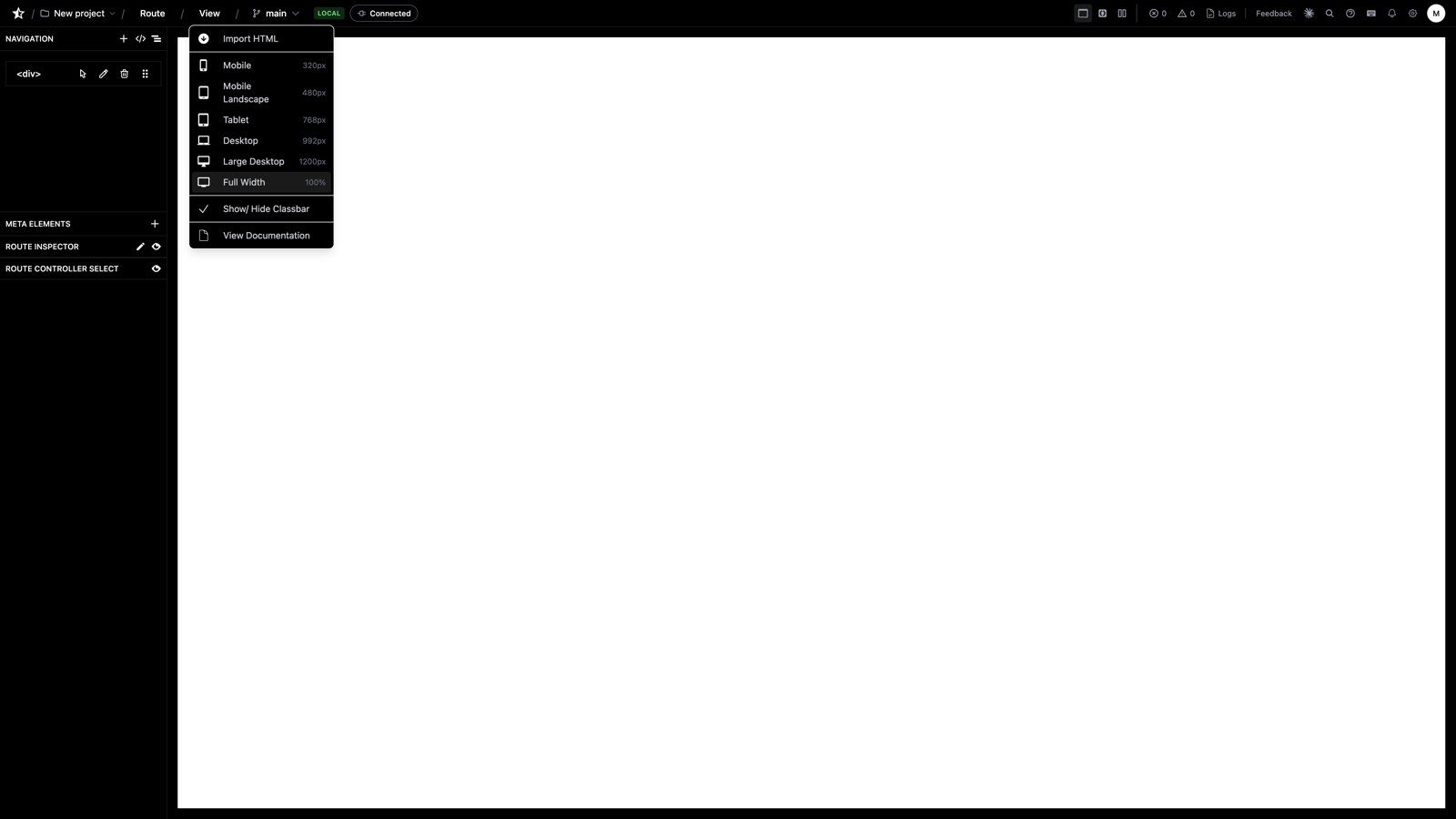
Preview modes:
- Desktop (default)
- Tablet
- Mobile
Toggle between viewports to test responsive design.
Keyboard Shortcuts
| Shortcut | Action |
|----------|--------|
| Ctrl/Cmd + S | Save page |
| Ctrl/Cmd + Z | Undo |
| Ctrl/Cmd + Y | Redo |
| Delete | Delete selected element |
| Ctrl/Cmd + D | Duplicate element |
| Arrow Up/Down | Navigate element tree |
Exporting HTML
To get the generated HTML:
-
Click Export button
-
Choose format:
- Blade Template - Laravel Blade syntax
- HTML - Plain HTML
- Component - Reusable component
-
Copy or download the file
The exported file includes all elements with proper nesting and attributes.
Best Practices
Structure
- Use semantic HTML - Change tags to
header,nav,section,article,footer - Keep nesting logical - Mirror how you'd write HTML manually
- Name important elements - Makes tree navigation easier
Styling
- Prefer utility classes - Use Tailwind instead of inline styles
- Create reusable patterns - Use duplicate for common structures
- Test responsive - Check mobile, tablet, desktop views
Performance
- Avoid deep nesting - Keep structure reasonably flat
- Use components - Reuse patterns instead of rebuilding
- Optimize images - Use appropriate sizes and formats
Accessibility
- Add alt text - Always include for images
- Use semantic tags - Helps screen readers
- Include ARIA labels - For interactive elements
- Ensure keyboard navigation - Tab order should be logical
Troubleshooting
Element not appearing?
- Check parent element is visible
- Verify classes aren't hiding it (e.g.,
hidden) - Ensure text content exists for text elements
Styling not working?
- Check class names are spelled correctly
- Verify Tailwind classes are valid
- Check for conflicting styles
- Use browser inspector to debug
Can't move/delete element?
- Check if element is locked
- Verify permissions
- Try refreshing the builder
Advanced Features
Custom Components
Create reusable components:
- Build element structure
- Click Save as Component
- Name your component
- Reuse across pages
Element Locking
Lock elements to prevent accidental changes:
- Select element
- Toggle Locked property
- Element becomes read-only
Version History
View and restore previous versions:
- Click History button
- Browse commits (if subscribed)
- Restore to any previous state
Next Steps
- Learn about Code Editor to add backend logic
- Read Configuration Guide to set up services
- Explore Exporting Code to deploy your app
Need help? Watch the video tutorial or check the API documentation.
- Previous
- Architecture
- Next
- Code Editor